Working the Table
Beyond the filters and colours, a handful of controls let you sort, search, pin a match, size the page and export what you see.
Sort
The default sort is Scheduled time, earliest first — the natural order for scanning the day's card match by match. Click any column heading to sort by that column instead; click again to reverse. An arrow on the heading shows the current direction. Sort a stat column to rank players — e.g. sort BPS descending to find the best break-point savers on today's card instantly.
Player search
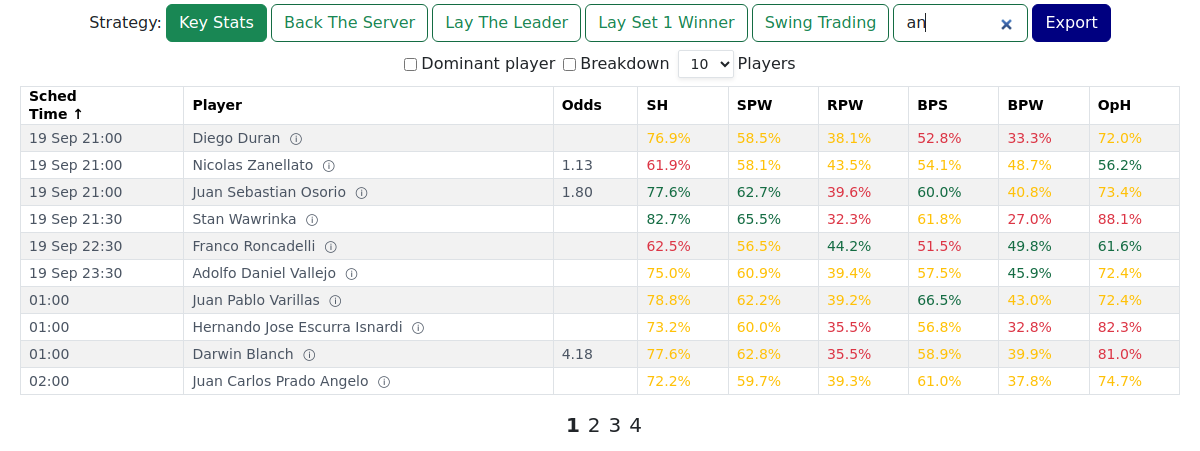
The Player Search box matches any part of a name: "djok", "novak" and "djokovic" all find the same player. The list filters instantly as you type; clear the box to see everyone again.
Compare players in a match
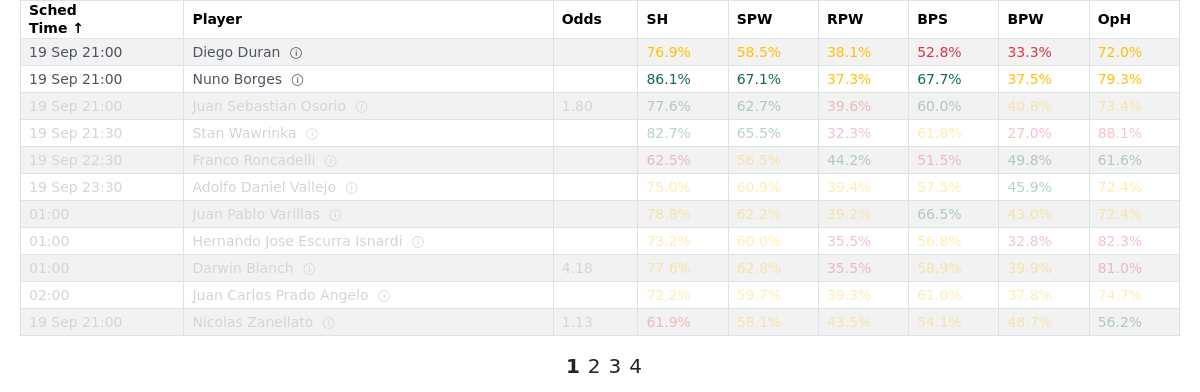
Click a row to pin that player and their opponent to the top, greyed from the rest — useful when you find an interesting player and want to make an opponent comparison. Click the highlighted row again, or any blank area of the table, to clear the pin and return to the full list.
Players per page
Choose 10 / 20 / 50 / All (default 20). A pager appears when there's more than one page. Set it to All to scan the whole day on one screen.
Export
The Export button downloads a CSV of exactly what's on screen at the moment you click: the current strategy's columns, all players passing your current filters, and a footer line listing your active Surface / Period / Tour / Match Filter settings plus a timestamp. Switch strategy first if you need different columns.
Notes, tips & tricks
- Sort a stat column to rank players — click the heading again to reverse.
- Player Search matches any part of a name — use it to jump straight to someone without scrolling or paging.
- Row click pins a player and their opponent — handy when you want one match in view while you compare the two players' statistics.
- Export saves a snapshot of the page as it is when you click. Switch strategy first if you need different columns.
- To be sure no rows are missed on export, set Players per page to All first — the export includes all filtered rows regardless, but this makes it easy to confirm the full set is visible.
FAQ
What is the default sort order? Scheduled time, earliest first. Click any column heading to sort by that column instead; click again to reverse. An arrow on the heading shows the current sort direction.
How does Player Search match — full name or part of it? Part of it. Any fragment of the name works — first name, last name, or a few letters from either. The list filters instantly as you type; clear the box to see everyone again.
How do I un-pin a selected player? Click the highlighted row again, or click any blank area of the table. The pin clears and the full list returns in its previous order.
What does the Export button give me — and why might exports look different on different days? The export contains exactly what's on screen at the moment you click: the current strategy's columns, all players shown under your active filters, and a footer line listing your Surface / Period / Tour / Match Filter settings plus a timestamp. The player list changes each day as the card changes — so the same filter settings on a different day produce a different set of rows.
How do I export a different strategy's columns? Switch to that strategy view first, then click Export. Each download captures the columns currently showing.
Are my active filters recorded in the exported file? Yes. A footer line at the bottom of the CSV lists your active Surface, Period, Tour, and Match Filter settings alongside a timestamp, so you know exactly what the file represents.